Configure Benefits, Exclusions, and Cost Sharing
Turn a plan shell into adjudication-ready rules for covered services and intentional non-covered-service denials.
Adding or editing a benefit in the portal creates and publishes a successor plan version. The prior published version remains intact for claims and audit history.
How a Benefit Rule Works
A benefit connects a service category to member cost sharing and utilization controls. The engine evaluates the rule selected for the claim’s mapped service category and network tier.
| Field | Meaning | Example |
|---|---|---|
serviceCategory | Category resolved from the billed service | 98 professional visit |
inNetworkCopay | Fixed member amount | 30.00 |
inNetworkCoinsurance | Member share as a decimal | 0.20 = 20% |
deductibleApplies | Whether deductible is applied first | true |
oopApplies | Whether cost sharing accumulates toward OOP maximum | true |
priorAuthRequired | Whether authorization is required | false |
1. Add Representative Benefits
Open the plan in the portal, select Benefits, and choose Add Benefits. Define the service category and description, then enter the cost sharing that applies in and out of network. Percentages are entered as whole percentages in the portal; for example, enter 20 for 20% coinsurance.
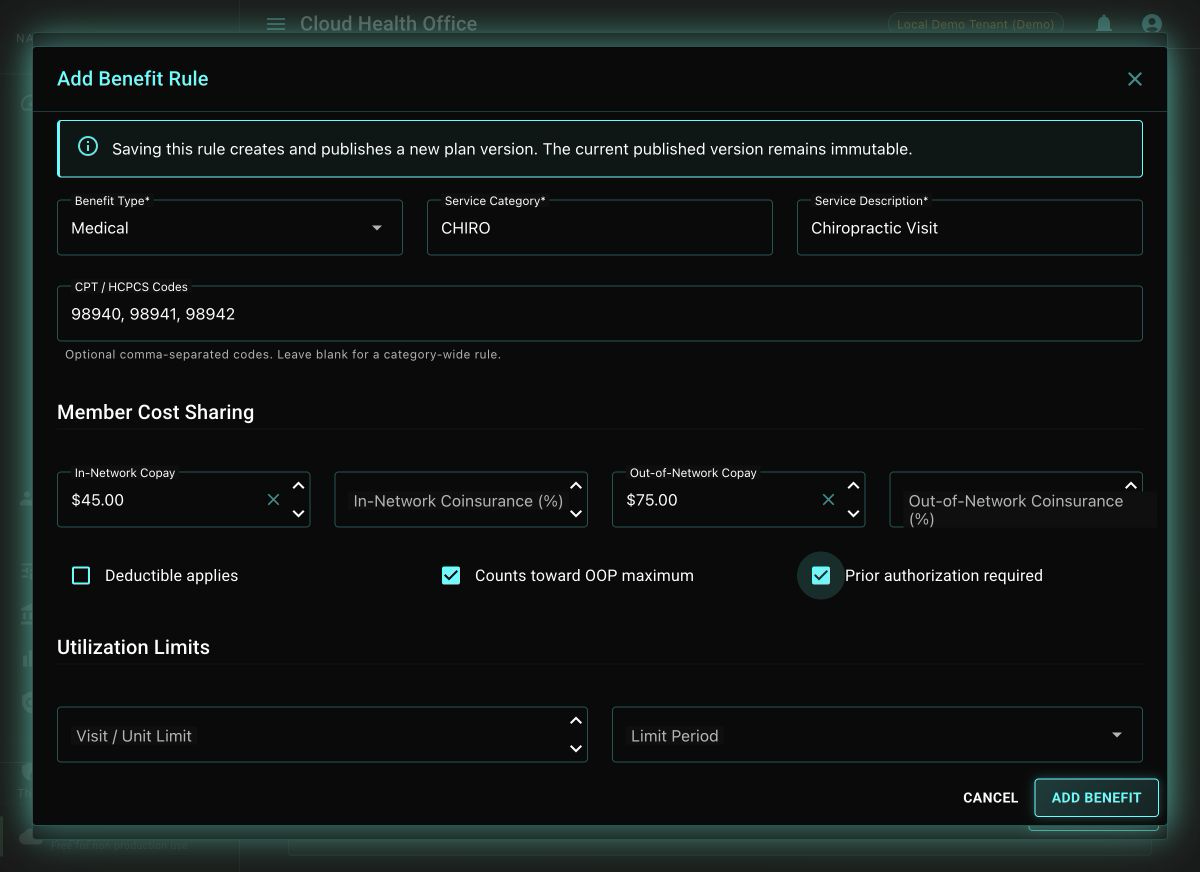
Select Add Benefit to publish the successor version. The Benefits tab refreshes with the newly effective rule. To revise a rule, use its pencil action, update the fields, and select Update Benefit; the edit is published as another successor version rather than overwriting history.
Optional: automate benefit creation through the API
For repeatable environment setup or bulk authoring, reuse the environment variables from the first tutorial and create the same rules through the service API. Start with an office visit:
curl -fsS -X POST \
  "${BENEFIT_PLAN_URL}/api/v1/plans/${PLAN_ID}/benefits" \
  -H "Content-Type: application/json" \
  -H "X-Tenant-ID: ${TENANT_ID}" \
  -d '{
    "benefitType": "medical",
    "serviceCategory": "98",
    "description": "Professional Office Visit",
    "cptCodes": ["99202", "99203", "99212", "99213", "99214"],
    "inNetworkCopay": 30.00,
    "outNetworkCopay": 60.00,
    "deductibleApplies": false,
    "oopApplies": true,
    "priorAuthRequired": false
  }' | jq
Add a deductible-and-coinsurance example next:
curl -fsS -X POST \
  "${BENEFIT_PLAN_URL}/api/v1/plans/${PLAN_ID}/benefits" \
  -H "Content-Type: application/json" \
  -H "X-Tenant-ID: ${TENANT_ID}" \
  -d '{
    "benefitType": "medical",
    "serviceCategory": "73",
    "description": "Diagnostic Lab",
    "cptCodes": ["80048", "80053", "85025", "36415"],
    "inNetworkCoinsurance": 0.20,
    "outNetworkCoinsurance": 0.40,
    "deductibleApplies": true,
    "oopApplies": true,
    "priorAuthRequired": false
  }' | jq
Like the portal workflow, each API write creates and immediately publishes an amendment because benefits are version-identity content. Re-fetch the plan after each write instead of editing a previously retrieved JSON document.
2. Add Explicit Exclusions
Select the Exclusions tab and choose Add Exclusion. Enter the mapped service category and a clear operator-facing description. Optional CPT or HCPCS codes provide review context, but the service-category mapping remains authoritative for routing billed codes to the exclusion.
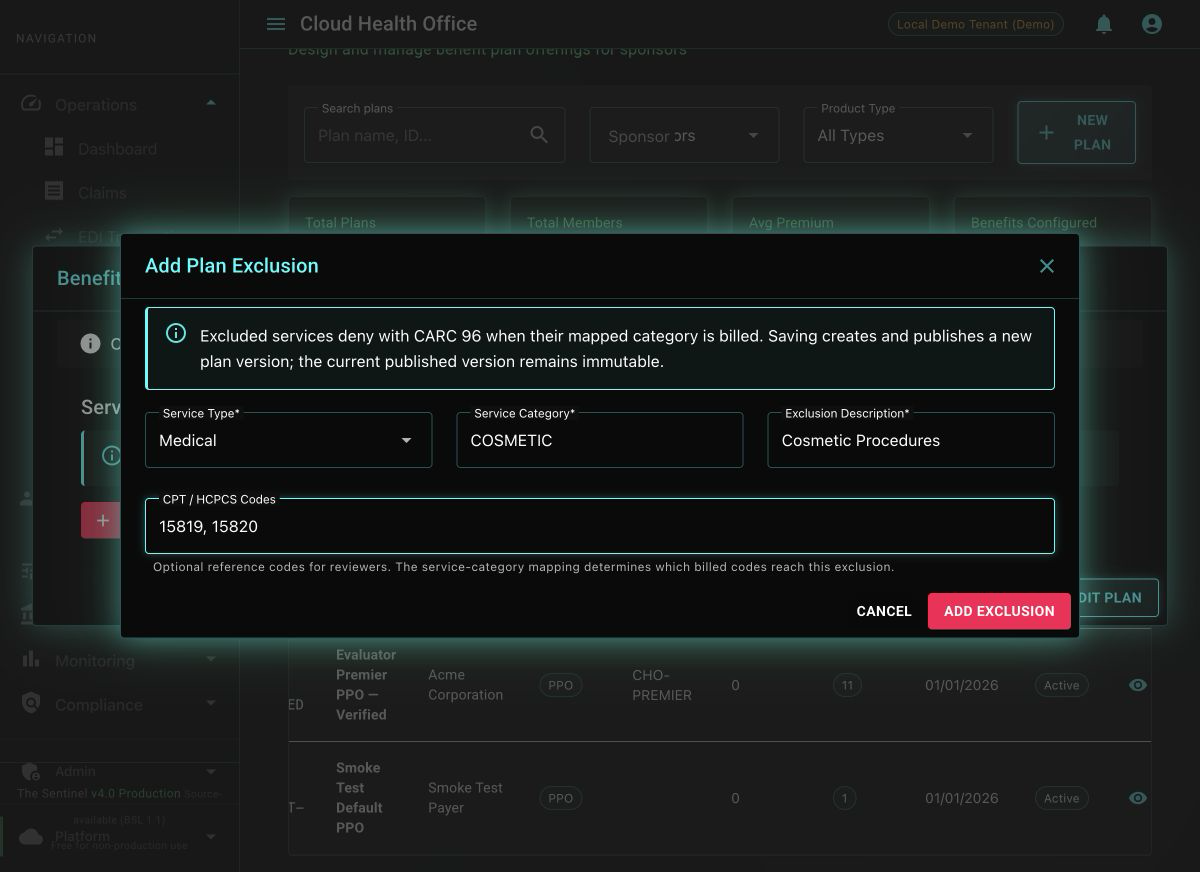
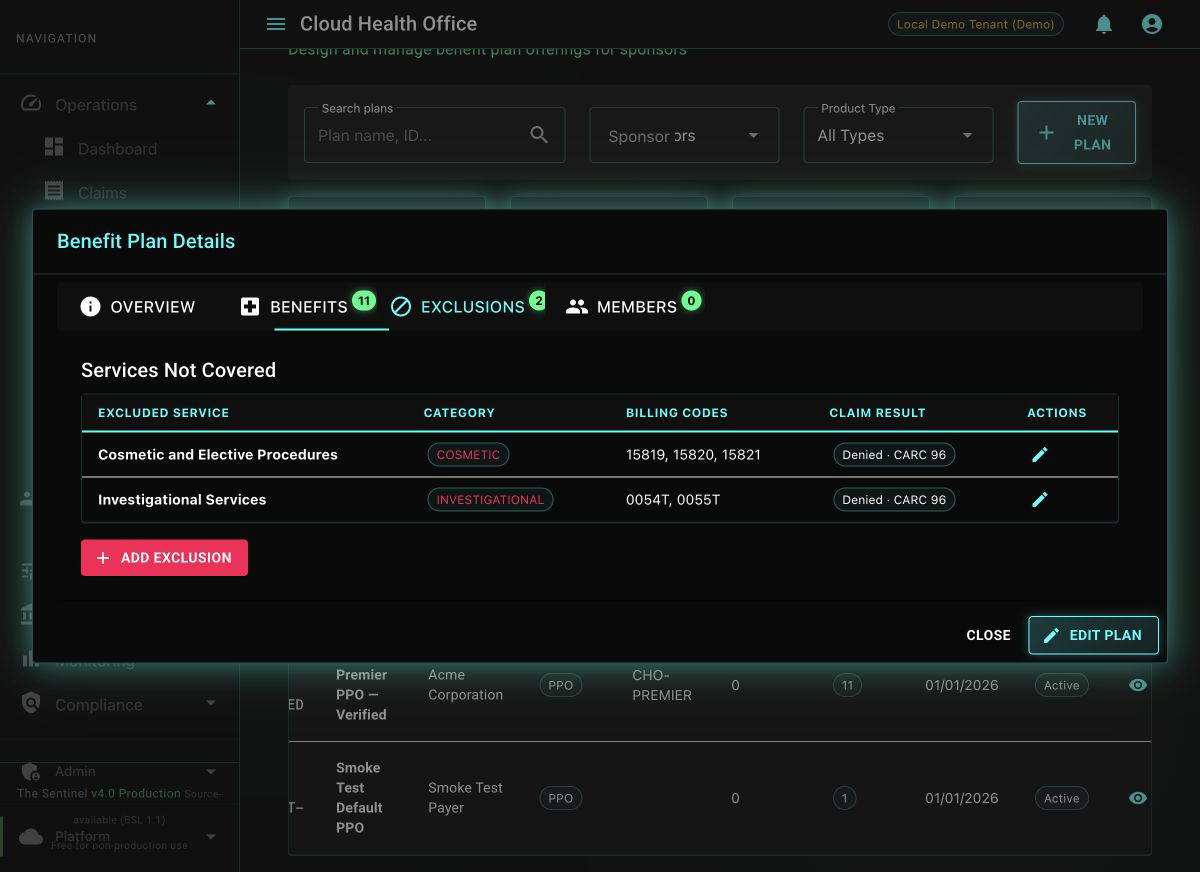
Select Add Exclusion. When a claim resolves to that category, benefit calculation returns a non-covered-service denial with CARC 96. Use the pencil action to revise an exclusion; each edit publishes another successor version.
An exclusion is enforced after procedure-code resolution. Confirm that the applicable CPT, HCPCS, revenue, place-of-service, and modifier rules map the billed line to the exclusion’s service category. Reference codes entered in the exclusion form do not replace service-category mapping.
Optional: automate an exclusion through the API
curl -fsS -X POST \
  "${BENEFIT_PLAN_URL}/api/v1/plans/${PLAN_ID}/benefits" \
  -H "Content-Type: application/json" \
  -H "X-Tenant-ID: ${TENANT_ID}" \
  -d '{
    "benefitType": "medical",
    "serviceCategory": "COSMETIC",
    "description": "Cosmetic and Elective Procedures",
    "isCovered": false,
    "cptCodes": ["15819", "15820", "15821"]
  }' | jq
3. Verify the Effective Configuration
curl -fsS \
  -H "X-Tenant-ID: ${TENANT_ID}" \
  "${BENEFIT_PLAN_URL}/api/v1/plans/${PLAN_ID}/benefits" |
  jq '.[] | {
    description, serviceCategory, inNetworkCopay,
    inNetworkCoinsurance, deductibleApplies,
    oopApplies, priorAuthRequired, isCovered
  }'
In the portal, confirm that fixed copays, percentage coinsurance, derived coverage percentages, and prior-authorization indicators match the intended configuration. The pencil action beside each row reopens its complete editable definition.
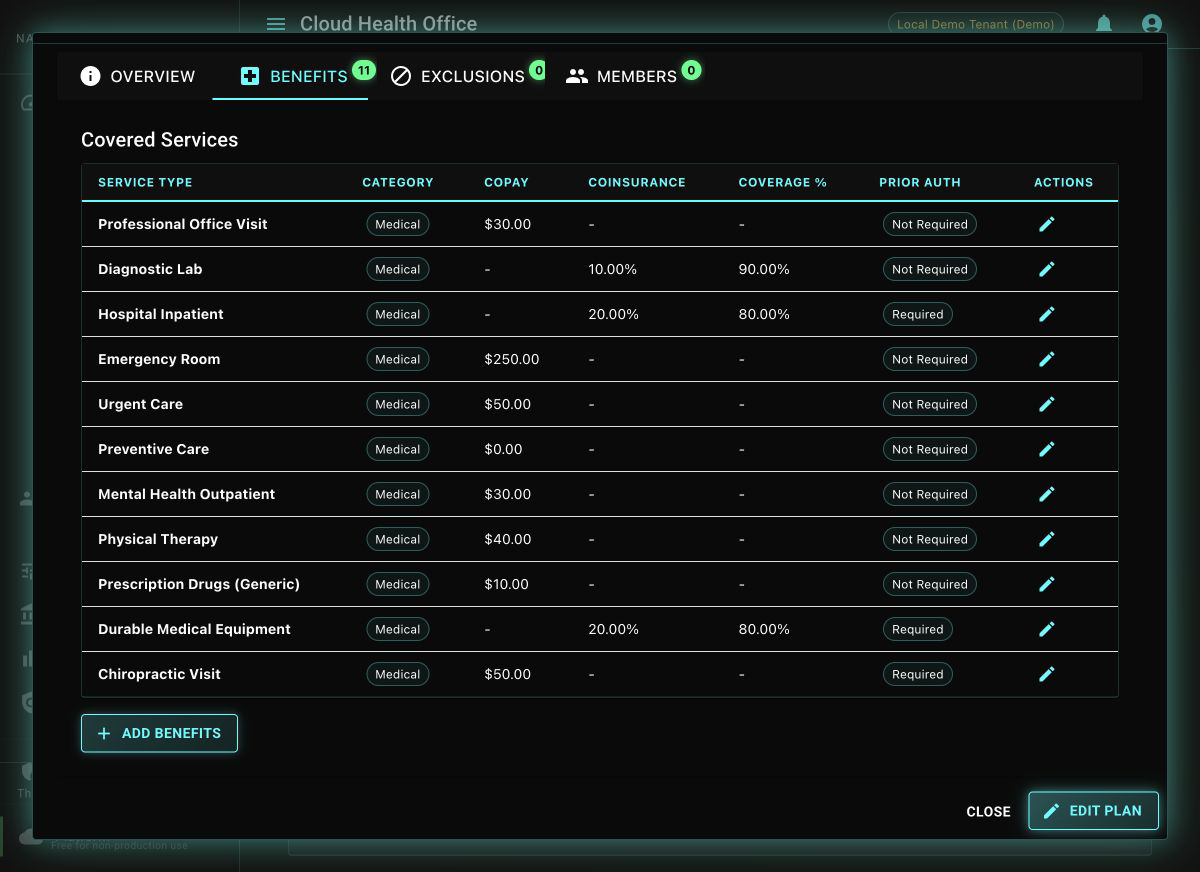
The office visit returns a $30 in-network copay without deductible, diagnostic lab returns 20% in-network coinsurance after deductible, and a claim mapped to COSMETIC denies as non-covered with CARC 96.
Benefit Design Checks
- Do not configure both a copay and coinsurance unless the intended product explicitly uses both.
- Represent percentages as decimals in the service API.
- Verify that service-category mapping covers the CPT, HCPCS, revenue, or service-type codes used by claims.
- Use only synthetic values in evaluator environments.
- Review annual and visit limits independently from deductible and OOP behavior.