Pended Claims Operations Guide
Route, review, resolve, and audit claims that need human judgment—with deterministic evidence as the source of truth and AI assistance enabled only by deliberate policy.
A pended claim has stopped at a human-review gate. The underlying edit evidence remains authoritative until an examiner deliberately approves or denies the claim.
How Pended Claims Move Through the Platform
Cloud Health Office separates deterministic adjudication from discretionary review. A rules stage records structured evidence and places the claim in Pended status. The queue exposes that evidence to an examiner, who makes the final disposition through a dedicated resolution action.
| State | Owner | What happens |
|---|---|---|
| Submitted | Platform | The accepted claim moves through scrubbing, network and credentialing, benefit calculation, edits, and persistence. |
| Pended | Claims operations | Structured PendDetails preserve the reason, affected lines, rule identifiers, and suggested adjustment codes. |
| Approved or Denied | Examiner | The explicit examiner action crosses the review gate, records notes and AI agreement when applicable, and finalizes the claim version. |
The deterministic pend record is always available. An AI recommendation may be attached later, but it is a separate advisory record and cannot overwrite the original rule evidence.
Know the Queue Routing Codes
The work queue groups related pend codes into examiner-friendly categories. Use the code—not free-text alone—for routing, reporting, and operational escalation.
| Queue | Pend codes | Typical examiner focus |
|---|---|---|
| NCCI Edit Failure | NCCI, MUE | Bundled procedures, units, line-level modifiers, and documentation supporting distinct services. |
| Missing Authorization | AUTH, NOAUTH | Authorization identifiers, service/date alignment, and retrospective-review policy. |
| Provider Not Contracted | OON, NOCONTRACT | Network participation, effective dates, credentialing, and permitted out-of-network handling. |
| COB Required | COB | Other coverage, payer order, primary payment information, and member coordination records. |
| Medical Review | MEDREVIEW, CLINICAL, or uncategorized | Clinical records, medical-necessity policy, and cases requiring specialized judgment. |
Operator Checklist
- Sign in with Claims Examiner or Claims Supervisor permissions.
- Use a claim whose current status is Pended.
- Confirm you are operating in the intended tenant before viewing or resolving work.
- Review the queue reason and age before assignment; older claims may require priority escalation.
- Use synthetic data in local development and documentation captures.
If you are starting with an X12 transaction, complete Submit an 837 and Follow the Claim first.
1. Open the Examiner Work Queue
Open Operations → Work Queues. Queue cards summarize the active pend reasons, while the table shows age, priority, member, provider, procedure codes, assignment, and any available AI recommendation. The default examiner filter is All Examiners, so unassigned work is visible.
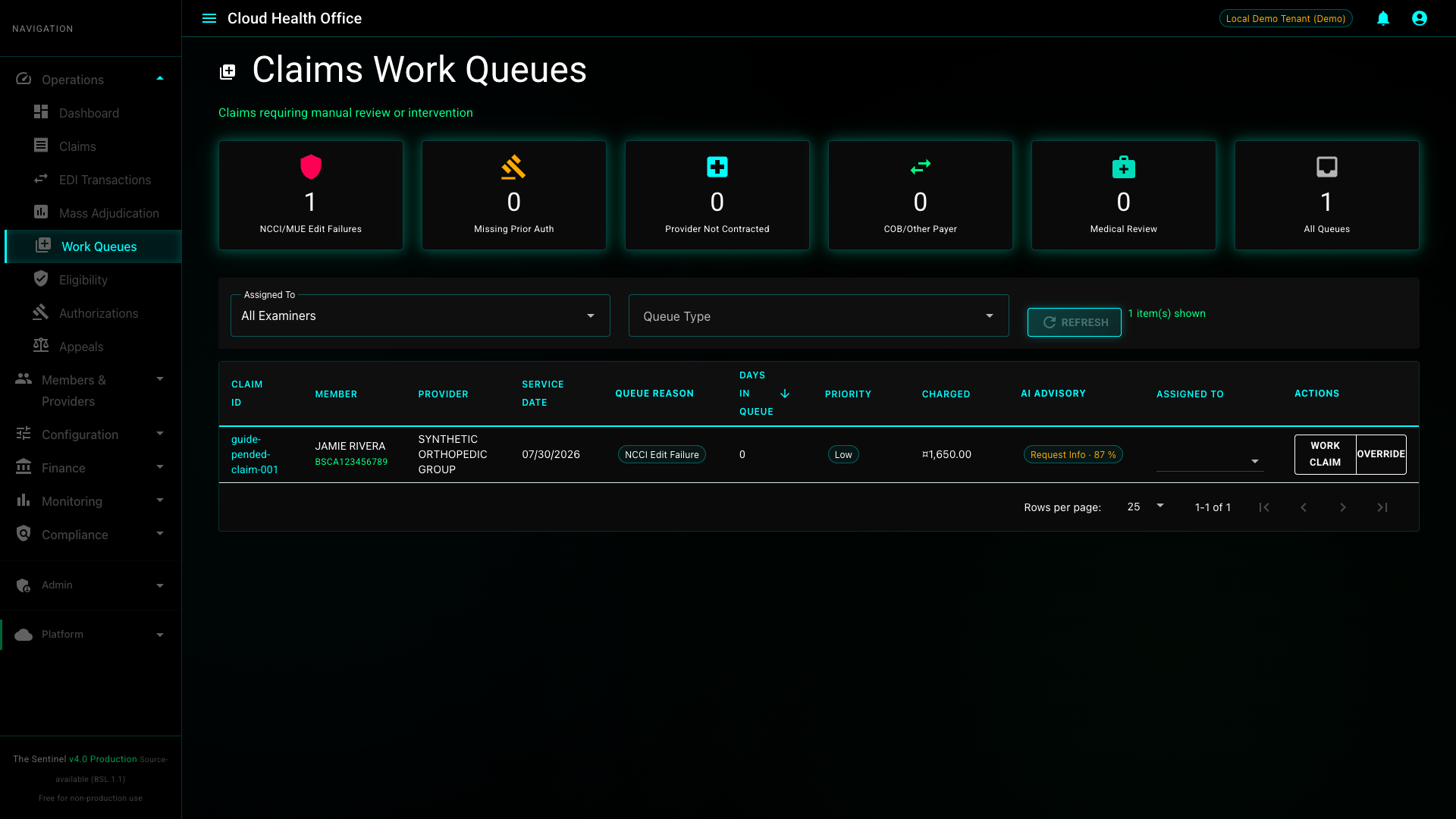
Select Work Claim to open the claim. In the current local reference flow, reassignment is transient rather than a persisted routing record; a supervisor can also use the explicit override action where policy permits.
2. Review the Deterministic Evidence
The Manual Review Required card explains why adjudication stopped. Review the pend code and every edit failure before deciding:
- Confirm the member, provider, service dates, diagnoses, and charged services.
- Review the affected claim lines and the NCCI or MUE rule identifier.
- Use the Adjudication Pipeline and Benefit Breakdown tabs to understand the calculations already performed.
- Compare submitted modifiers and documentation against your organization’s policy.
3. Use the AI Advisory as Decision Support
When enabled, the AI Claims Examiner can analyze eligible NCCI modifier-related pends and attach a recommended disposition, confidence score, rationale, and policy citations. It is advisory only: validate its evidence, follow plan policy, and make an independent determination.
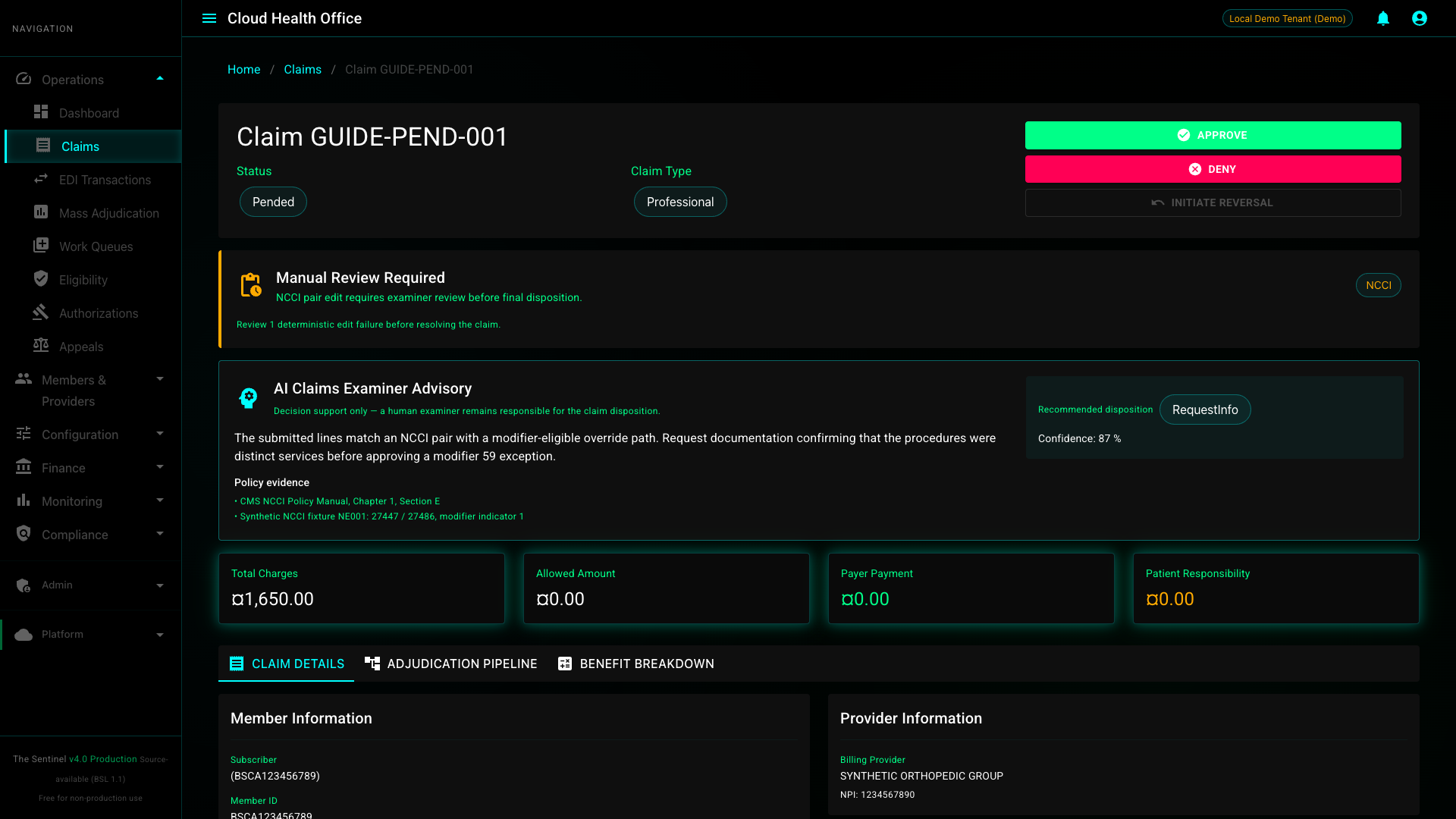
AI may be disabled, unavailable, or inapplicable to the edit. Human review continues normally; a missing advisory never blocks claim resolution.
4. Resolve the Claim
Choose Approve when the submitted evidence supports payment under policy, or Deny and enter the reason when it does not. These controls use the dedicated pend-resolution workflow—not the generic adjudication status writer—so the human-review gate is crossed explicitly.
Resolution persists the final claim and version state, records examiner notes, emits the finalized-claim event, and stores Accepted or Overridden feedback when an AI recommendation was present. The feedback supports later quality analysis; it does not train or change the model during the decision.
| Examiner action | Final state | AI feedback when present |
|---|---|---|
| Approve and follow the recommendation | Approved / Adjudicated | Accepted |
| Approve or deny with a changed rationale | Approved or Denied / Adjudicated | Modified |
| Choose the opposite disposition | Approved or Denied / Adjudicated | Overridden |
After resolution, refresh the queue and claim detail. The item should leave the active queue, while the claim retains its original PendDetails, examiner notes, adjudicated timestamp, and any advisory record for audit.
Operate AI as an Explicit, Metered Capability
The local deployment and Million Claim Challenge leave the metered AI path off by default. Production and controlled demos can use best-effort examination, where an AI outage does not block deterministic adjudication or manual review.
| Mode | Examiner service | Use |
|---|---|---|
Disabled | Scale to zero | Default for local development, regression testing, and Million Claim Challenge runs. No metered model invocation. |
BestEffort | One or more replicas | Production or an intentional demo. Eligible NCCI modifier pends receive advisory analysis; failures degrade to the human queue. |
To opt in for a local development or demo run, place these values in your uncommitted .env.local and redeploy:
LOCAL_ENABLE_AI_CLAIMS_EXAMINER=true
ANTHROPIC_API_KEY=<your-api-key>scripts/deploy-local.shWhen opt-in is absent, bootstrap sets Adjudication__Enforcement__AiMode=Disabled and scales claims-examiner-service to zero. Never commit the API key or place it in a guide screenshot.
Confirm the secret contains a real API key without printing it, submit only the intended synthetic claim, capture the recommendation and audit result, then restore AiMode=Disabled and scale the examiner back to zero.
Verify the Complete Workflow
The repository includes a strict regression test for the non-metered path. It creates an isolated tenant, provisions provider and plan prerequisites, imports an 834, submits a real two-line 837, verifies NCCI rule NE001 reaches the queue, resolves the claim, and confirms it leaves the queue.
scripts/smoke/837-pended-claim-e2e-smoke.shThe test fails closed unless Kubernetes reports AiMode=Disabled and zero examiner replicas. A metered run requires the explicit ALLOW_METERED_AI=true opt-in; never add that flag to routine CI or benchmark automation.
Maintain the Guide Screenshots
The checked-in capture workflow keeps documentation images repeatable after intentional portal changes. Use a synthetic pended claim that already contains the evidence and advisory fields you want to demonstrate.
npm install
GUIDE_CLAIM_ID=<synthetic-pended-claim-id> npm run guides:capture:pended-claim
The command uses a fixed desktop viewport, local demo sign-in, and writes both images under src/site/graphics/user-guides/pended-claim/.
Troubleshooting
| Symptom | What to check |
|---|---|
| No claims appear | Use All Examiners, clear the queue-type filter, and confirm the claim status is Pended for the current tenant. |
| No AI advisory appears | This is expected when AI is disabled or the pend is not eligible. Review the deterministic evidence and continue manually. |
| Approve or Deny returns a conflict | Refresh the claim. Another examiner or process may already have resolved it. |
| An NCCI failure is denied instead of pended | Confirm the tenant uses NcciMode=PendForReview, then check whether an earlier stage already produced a higher-priority denial. |
| Provider or member prerequisite dominates the result | Confirm active member status, valid NPI, network participation on the service date, and an approved credentialing event-chain decision. |
| AI opt-in deployment stops | Confirm ANTHROPIC_API_KEY is set only in the local secret source and rerun bootstrap. |
| AI request fails after opt-in | Leave the claim in the human queue, inspect examiner-service health and the advisory audit record, then disable the metered path if the demo is complete. |
| Screenshot capture cannot find the claim | Confirm the portal tenant, claim ID, local portal URL, and local demo authentication configuration. |